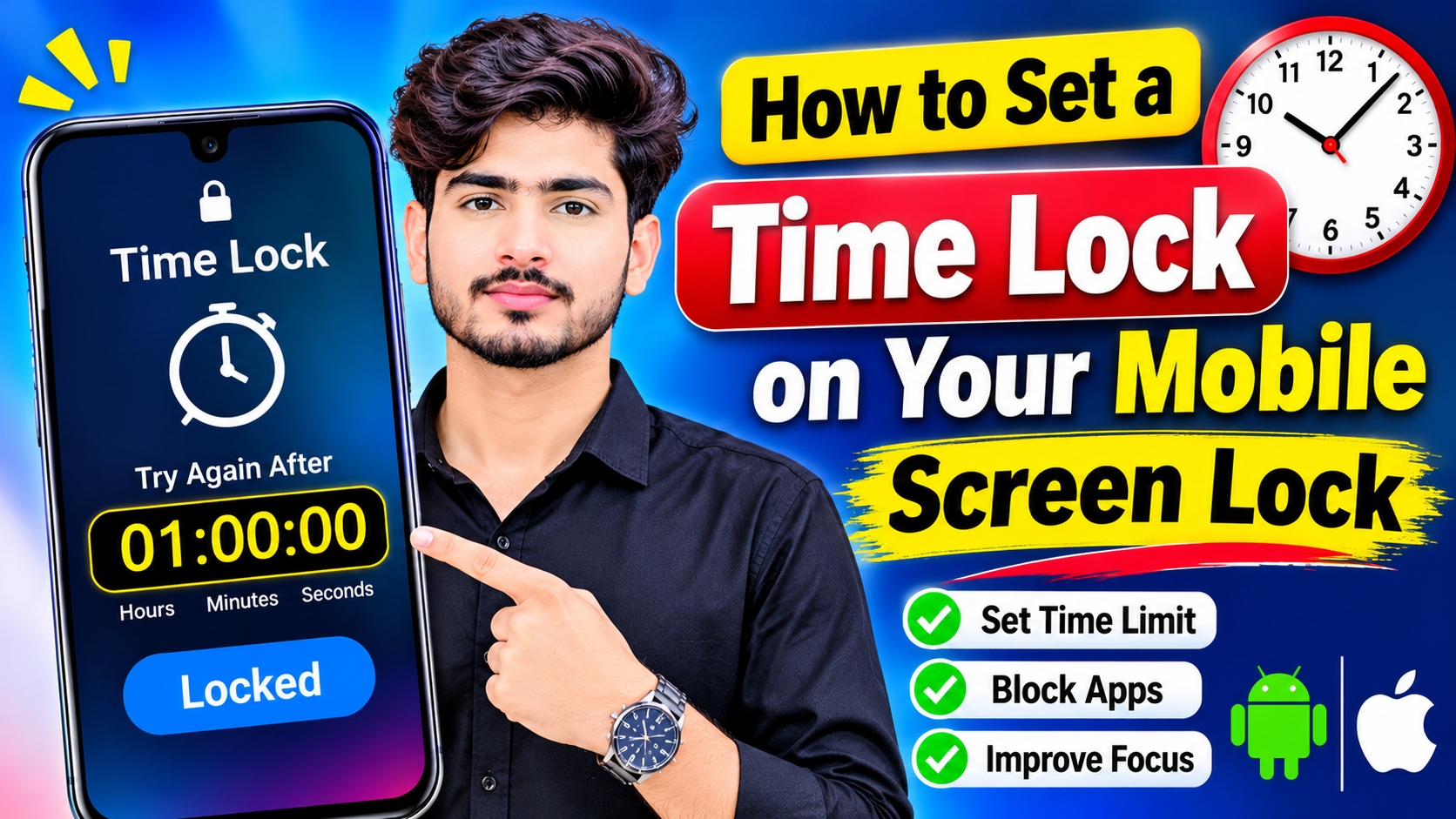
How to Set a Time Lock on Your Mobile Screen Lock
Smartphones have become an important part of our daily lives. We use them for communication, entertainment, education, banking, social media, and work. However, spending too much time on a phone can affect productivity and sleep. A useful solution is to use screen-time controls, app timers, and scheduled restrictions to control when your mobile device or specific apps can be used.
In this guide, we will explain what a mobile time lock is, how it works, and how you can set up time-based restrictions on Android and iPhone devices.
What Is a Mobile Time Lock?
A mobile time lock is a feature that restricts access to a phone or particular applications during a selected period. Depending on the device, it may be available through Screen Time, Digital Wellbeing, parental controls, app timers, or focus features.
For example, you can set a daily limit of 30 minutes for a social media application. Once the limit is reached, the app can become restricted until the next day. Some devices also allow scheduled downtime during which selected apps are unavailable.
This feature is especially useful for people who want to reduce unnecessary phone usage and create healthier digital habits.
Why Use a Time Lock on Your Phone?
There are several reasons to use time-based screen restrictions.
1. Reduce Screen Time
Social media, video platforms, and games can consume hours without you noticing. App timers can help you stay within a specific daily limit.
2. Improve Productivity
If you frequently check your phone while studying or working, scheduled restrictions can reduce distractions and help you concentrate.
3. Create a Better Sleep Routine
Using a scheduled downtime period at night can encourage you to stop using certain apps before going to bed.
4. Manage Children’s Device Usage
Parents can use built-in family and parental-control features to establish appropriate screen-time limits for children.
How to Set a Time Lock on Android
Android phones can have different settings depending on the manufacturer and Android version, but many devices include Digital Wellbeing and parental controls.
Start by opening your phone’s Settings application. Look for Digital Wellbeing & parental controls or a similarly named option.
Open the dashboard to see how much time you spend using different applications. Select an application for which you want to create a limit. Look for App timer and choose the amount of time you want to allow each day.
For example, you could set a 30-minute daily limit for a social media app. After the available time has been used, the app may be paused until the timer resets.
Some Android phones also provide bedtime or focus features. These can help reduce distractions during selected hours.
Keep in mind that menu names can vary between Samsung, Xiaomi, Google Pixel, OnePlus, and other Android devices.
How to Set a Time Limit on iPhone
iPhones provide similar functionality through Screen Time.
Open Settings and select Screen Time. If Screen Time has not been activated, follow the instructions to turn it on.
You can then select App Limits to create a daily time limit for individual apps or categories. Choose the apps you want to restrict and select the amount of time you want to allow.
The Downtime feature can also be used to schedule a period when most apps are unavailable. You can customize which applications remain accessible during Downtime.
For children, parents can configure Screen Time using Apple’s family features and establish restrictions appropriate for the child’s age and needs.
Can You Lock the Entire Phone at a Specific Time?
This depends on your device and operating system. Standard Android and iPhone features generally focus on screen-time limits, app restrictions, downtime, and parental controls rather than automatically changing or bypassing the phone’s main lock-screen password at a particular time.
If your goal is simply to make the phone unavailable during certain hours, Digital Wellbeing, Screen Time, Focus modes, or parental-control features are safer options than third-party applications that claim to modify the system lock screen.
Tips for Using Time Locks Effectively
Start with realistic limits rather than setting extremely short restrictions immediately. For example, reduce entertainment-app usage by 15–30 minutes per day.
You should also review your screen-time report regularly. This can show which applications consume the most time and help you decide where restrictions are most useful.
Avoid installing unknown applications that request unnecessary permissions just to provide a timer feature. Whenever possible, use the screen-time controls already included with your phone.
Conclusion
A mobile time lock can be a simple and effective way to manage smartphone usage. Android users can take advantage of Digital Wellbeing, while iPhone users can use Screen Time, App Limits, and Downtime.
These features can help reduce distractions, improve productivity, support healthier sleep habits, and manage children’s screen time. Instead of trying to bypass a phone’s security system, use the built-in controls provided by your device to create safe and practical time-based restrictions.